THE CLEARMETADATA GUIDE
How to remove and add metadata with ClearMetadata
From removing EXIF to saving your favourite locations: a step-by-step guide to photos, video, audio, camera profiles and image adjustments.
Updated
Open the toolFrom removing a photo’s location to saving “Home” for next time: learn what every control does, what changes in your files and where to find the result.
Real tool screenshot using demonstration data. Select a screenshot to view it at full size.
Remove or inject: choose a mode
Metadata are details stored alongside a photo, video or recording: they may include a camera, author, software, date or GPS coordinates. ClearMetadata lets you remove identifying metadata or write new information, depending on the mode you choose.
| Mode | What it does | Access |
|---|---|---|
| Remove Only | Removes supported identifying metadata and creates a cleaned copy. | Free, no account. |
| Inject Metadata | Adds camera, date and location information; enables visual adjustments and export options. | Free account with an active session. |
In Remove Only, camera, GPS, color and injection format controls are locked. A camera or place shown in the panel is not added during cleanup. Signed-in users can switch between both modes.
↑ Back to contentsHow to remove metadata
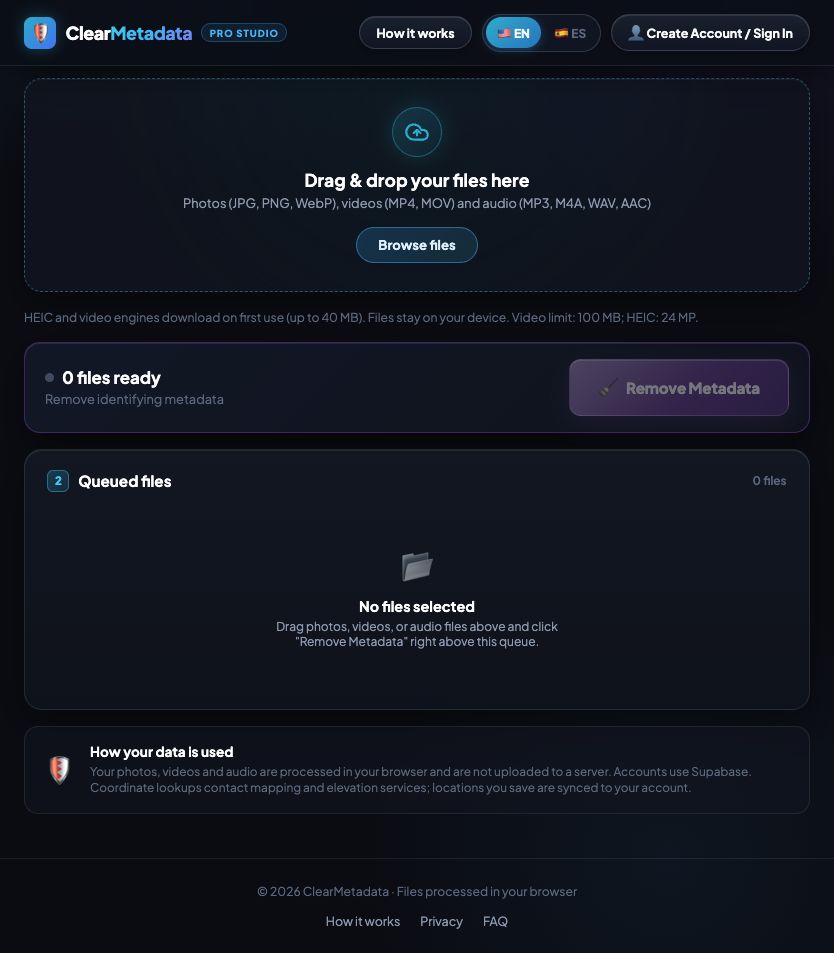
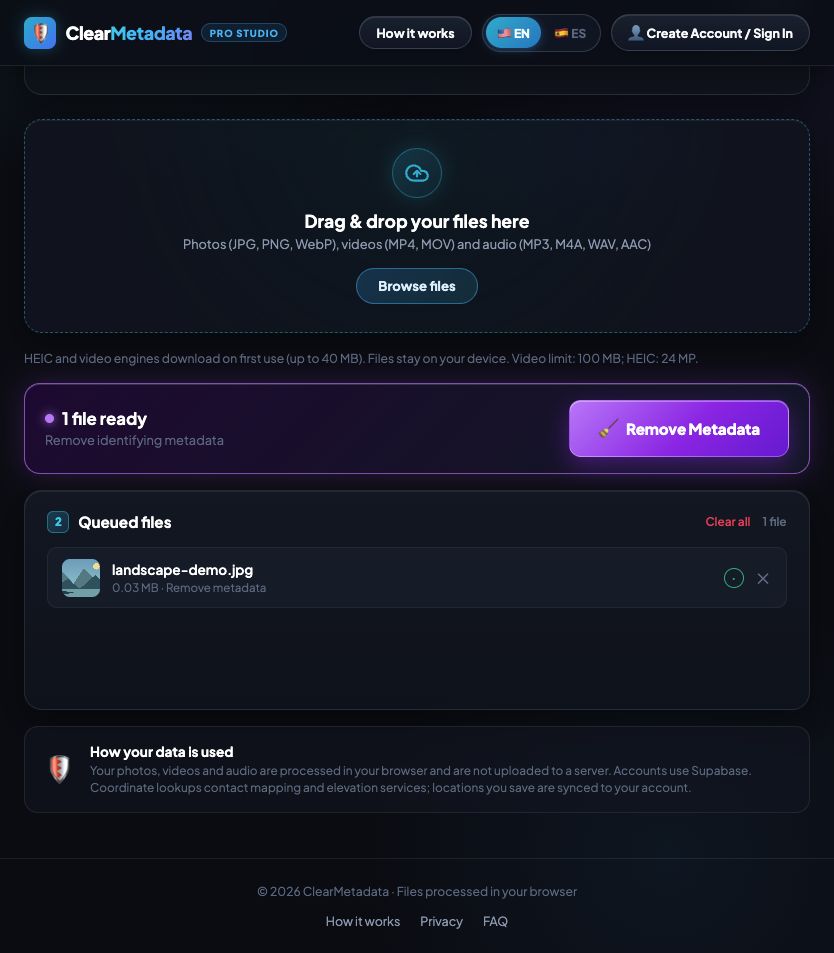
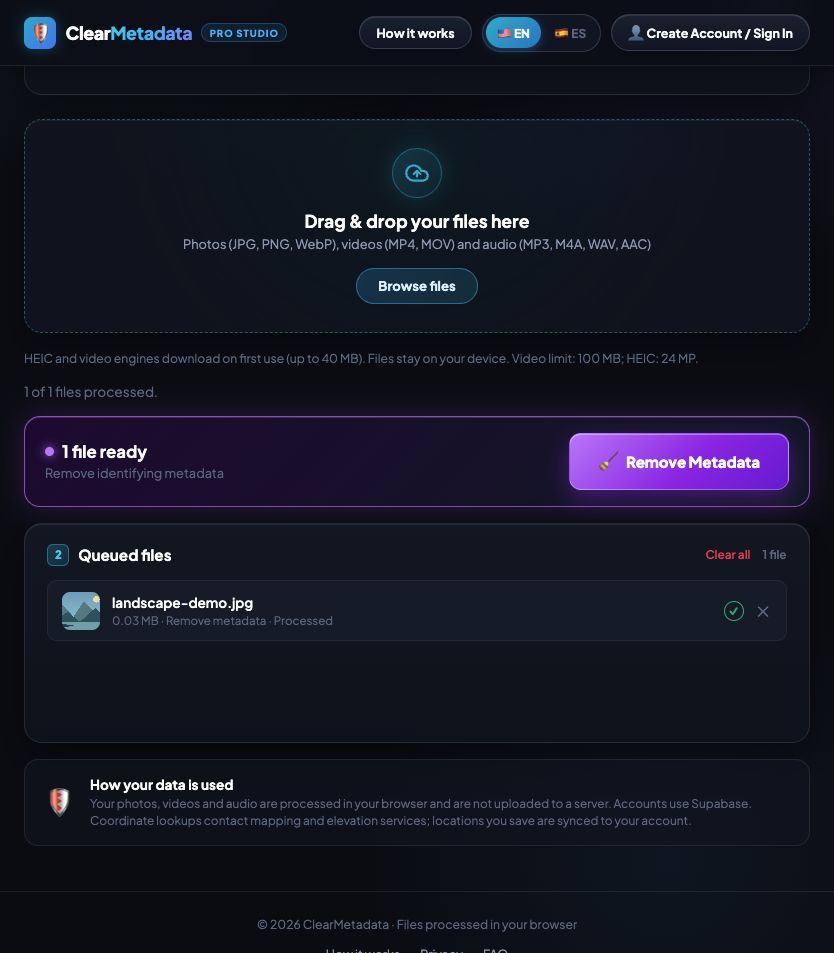
- Select Remove Only. No registration is needed.
- Drag files into the upload area or click Browse files. Add several files and mix supported types in one queue.
- Click Remove Metadata. Each file is processed in your browser and downloaded as it finishes.
What is removed and what stays
Depending on the format, cleanup removes EXIF, GPS, camera details, embedded dates, authors, comments, software tags and supported XMP, IPTC or C2PA provenance blocks. Technical information needed to display colors and play the media is retained.
For photos, direct cleanup preserves encoded image data where possible. If orientation depends on EXIF, it first applies the rotation and re-encodes in the original format to avoid a rotated copy. Lossless output is therefore not promised for every case. MP4/MOV cleanup preserves video and audio samples without re-encoding them.
Remove metadata for free ↑ Back to contentsAccount and injection workflow
Click Create Account / Sign In or Inject Metadata. Registration asks for your name, country, email and password. If email confirmation is required, open the link you receive, then sign in. Injection becomes available with a valid session.
The registration country belongs to your user profile: it does not set your files’ GPS location. Click the button displaying your name to view account information or sign out.
- Select Inject Metadata and choose a device.
- Set the GPS location—or no GPS—and capture date.
- Choose whether to apply color and grain, set their intensity and review export options.
- Add your files, check the device and place summary, then click Inject Metadata.
- Open the downloaded copies to check the result.
Cameras, models and software
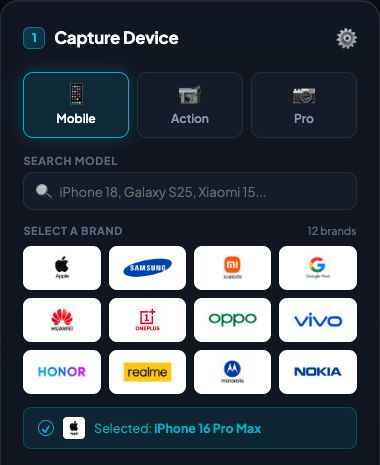
The selector has three categories: Mobile, Action and Pro. Open a brand and choose a model, or use the search field. Search stays within the active category. Check Selected after changing brands, as the first model may be selected automatically.
The current database contains 229 profiles: 126 mobile, 50 action and 53 professional cameras. Mobile brands include Apple, Samsung, Xiaomi, Google Pixel, Huawei, OnePlus, Oppo, Vivo, Honor, Realme, Motorola and Nokia. Action includes DJI, Insta360, GoPro, AKASO and SJCAM. Pro displays Canon, Sony, Fujifilm, Nikon and Lumix; its search also finds Leica and Hasselblad profiles.
What the profile writes
Photo fields can include make, model, software or firmware, lens, focal length, aperture, ISO, exposure, flash and metering information, dates, dimensions and other EXIF fields. Values come from the selected profile; the app does not analyze which camera or exposure actually created your image.
iOS, Android and firmware versions
Each profile already includes its software version. This can be an iOS or Android version, a build or manufacturer software identifier, or camera firmware. There is no separate operating-system version selector.
Choosing a device does not add megapixels or reproduce its sensor. It does not automatically change the color style or photo format either. It does initially select MOV for Apple and MP4 for other brands; you can change this afterwards.
Destinations and no GPS
In injection mode, open GPS Location. The window offers preset destinations, Saved and Paste from Google Maps / Manual.
The current catalog contains 80 geographic destinations with coordinates and elevation. Search for a city, country or place type, or use the country shortcuts. Click Select to apply a result. The destination name helps you identify it; photos and videos receive the coordinates supported by their format.
↑ Back to contentsPaste Google Maps or coordinates
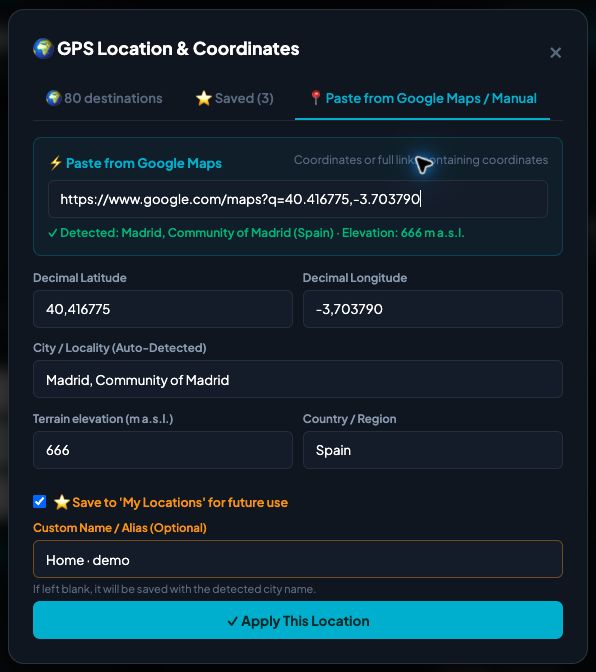
- Open GPS Location → Paste from Google Maps / Manual.
- Paste decimal coordinates, such as
40.416775, -3.703790, or a full Maps URL containing them. - The app extracts latitude and longitude, then looks up the locality, country and terrain elevation. Wait for the lookup to finish.
- Review the fields. You can edit the locality, country, latitude, longitude and elevation manually.
- Click Apply This Location, with or without saving it.
What is filled in automatically
Coordinates are extracted from the text you paste. A mapping service supplies the locality and country; an elevation service supplies terrain height. On applying the location, the tool converts coordinates to the format required for EXIF, including north/south and east/west references.
Elevation means terrain height above or below sea level, not a building floor or the camera’s height. Zero and negative values are supported. The tool does not request your browser’s current GPS position.
Short links and unfinished lookups
If you copied a short link such as maps.app.goo.gl/…, open it in Maps and copy the marker’s coordinates or full URL. Links without coordinates cannot be interpreted directly. When a URL contains both place and map-center coordinates, the place is prioritized.
Apply is locked while the lookups run. If a service fails, complete the unresolved fields manually; do not save an unresolved place or elevation. Pasting another point cancels the previous lookup to avoid mixing results.
Save Home, Beach or Café
To avoid entering the same place again, keep Save to My Locations checked and enter a Custom Name / Alias: Home, Beach, Café, Office, Downtown Studio or Madrid Home. Clicking Apply This Location selects the point and adds it to Saved.
Each entry keeps its alias, locality, country, coordinates and elevation. Leave the alias blank to use the locality name. Uncheck saving to apply the point to the current work without adding it to the list.
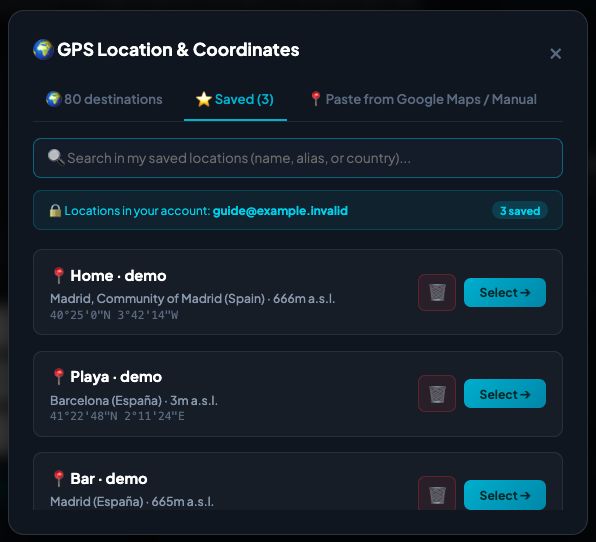
- Open Saved when you want to reuse a place.
- Search by alias, locality or country—for example, Home or Spain.
- Click Select to apply it, or use the trash control to remove it from the list.
Saving with the same alias replaces that entry; nearly identical coordinates can also update an existing entry. There is no separate edit button: enter the location again with its alias, or remove and recreate it. Removing an entry does not automatically change an already selected point.
Locations are separated by account, retained in that browser and sent for account synchronization. If a synchronization error appears, do not assume another device already has the change. Signing out locks the GPS panel.
GPS jitter
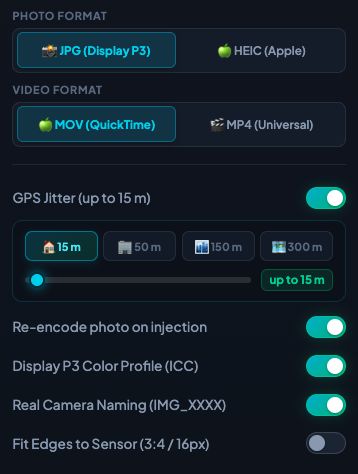
GPS Jitter adds a small random variation around the chosen point for each file. It starts enabled with a maximum radius of 15 meters. Shortcuts offer 15, 50, 150 and 300 meters; the slider ranges from 5 to 500 meters.
When enabled, it moves latitude and longitude in a random direction and can slightly vary elevation. It does not detect real movement or improve the point’s accuracy. The displacement does not necessarily reach the full selected radius.
↑ Back to contentsCapture date, time and batches
Capture Date starts with your computer’s current local date and time. You can change it before injection. The time zone comes from your browser; it is not calculated from the Google Maps country.
For photos, videos and M4A in a batch, each file’s position adds two minutes: the first uses the selected time, the second adds two minutes, the third adds four. MP3, AAC and WAV do not apply that increment. The selected date is not added in Remove Only.
↑ Back to contentsColor, grain and intensity
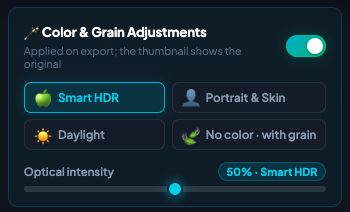
Color & Grain Adjustments really changes the pixels in the exported file. The profiles are app-defined styles that work with any selected device. They are not official manufacturer filters or an exact reproduction of a phone’s camera.
One style at a time, from 0 to 100%
All four styles start at 50%. Choosing a style resets intensity to 50%. Styles do not stack: Portrait replaces Smart HDR. The percentage scales that style’s parameters, including grain; two styles at 50% do not produce the same effect.
At 100%, the style uses its full configured strength. Set 0% or turn the block off to avoid color changes and grain. Choosing a style or raising intensity enables it again. There are no separate sliders for shadows, highlights, saturation, smoothing or grain.
| Style | What changes |
|---|---|
| Smart HDR | Softens highlights and whites, lifts shadows and blacks, slightly reduces exposure, contrast and saturation, applies mild smoothing and adds fine grain. This is tonal processing, not a true HDR file. |
| Portrait & Skin | Further reduces highlights, contrast and saturation, lifts shadows, smooths texture more and adds grain. This is a global effect: it does not detect faces or act only on skin. |
| Daylight | Softens strong highlights, adjusts exposure, contrast and saturation, lifts shadows and adds grain without the smoothing of the other two styles. |
| No color · with grain | Applies no tonal or saturation adjustments. It still adds grain when the block is enabled above 0% intensity. |
Export photos as JPG or HEIC
Photo input can be JPG/JPEG, PNG or WebP. Injection exports to JPG or HEIC; HEIC is not accepted as input.
- JPG: the default, widely compatible option. Re-encoding uses internal quality 0.95.
- HEIC: genuine HEIC export at internal quality 90, with EXIF and a color profile. It requires a compatible browser and the web version.
There is no visible quality control. With the usual settings enabled, a photo is re-encoded and its file size and compression can change. Selecting a higher-megapixel device does not increase resolution. Transparent input is flattened onto white when exported through the JPG/HEIC path.
How to reduce visual changes
Turn off color and grain, leave edge fitting off and choose your format. Format or color-space conversion can still require re-encoding. No color · with grain does not mean the same bytes are saved.
A path without pixel re-encoding exists for normally oriented, non-CMYK JPEGs: select JPG output and turn off color/grain, photo re-encoding, Display P3 and edge fitting. Metadata is replaced while compressed image data is kept. Use Remove Only to remove information without these injection adjustments.
↑ Back to contentsICC color, cropping and names
Re-encode photo on injection
Forces photo re-encoding during injection, even when no other adjustment requires it. Existing metadata is replaced with this option off too: it does not preserve old C2PA/XMP credentials. Re-encoding does not remove SynthID.
Display P3 Color Profile (ICC)
Converts color values from sRGB to Display P3 and embeds the ICC profile so compatible programs interpret the image correctly. This is not another creative filter and it does not recover missing colors. It works with any selected camera. Turning it off avoids this conversion; the path without re-encoding can keep the original ICC profile.
Fit Edges to Sensor (3:4 / 16px)
Applies a centered crop. Photos close to 3:4 or 4:3 are fitted to that ratio; other dimensions are aligned to multiples of 16 pixels. This can remove a border and reduce dimensions: it does not stretch, add detail or copy the selected model’s exact sensor. It starts off and does not change photos smaller than 64 pixels in width or height.
Real Camera Naming (IMG_XXXX)
Generates sequential photo and video names such as IMG_3841.JPG. The counter is saved in that browser. Turn it off to use the base name and device profile, such as beach_iphone16promax.jpg. It does not apply to audio. Remove Only always uses the _clean suffix.
MOV and MP4 videos
You can open MP4/MOV and select MOV or MP4 output. Choosing an Apple device initially selects MOV; other brands select MP4. You can change the format afterwards.
Video injection always re-encodes, even when color and grain are off or at 0%. It uses H.264 video and re-encodes compatible audio to AAC. It adds supported device, software, date and location fields. Choose no GPS to omit coordinates.
- The color/grain style and intensity are applied when enabled. Edge fitting can also crop video.
- Existing audio keeps its audible content, but is re-encoded.
- When there is no audio track, a silent track matching the video’s duration is added automatically. There is no separate switch for this feature.
- Re-encoding does not preserve subtitles, chapters or data tracks. PQ/HLG HDR input is converted to SDR.
Audio metadata
Supported audio formats are MP3, M4A, WAV and AAC. Remove Only deletes supported identifying tags while keeping the audio content. It does not convert audio to another format.
MP3, AAC and WAV injection adds supported device, software and date tags. A location alias such as Home or Beach can become the recording’s title. These three formats do not receive numeric GPS coordinates in this implementation. M4A uses QuickTime metadata and can include location.
Color, grain, Display P3 and cropping do not alter sound. JPG/HEIC and MOV/MP4 selectors do not convert audio either. There is no audio quality or output-format control, and no silent track is added to an audio recording.
↑ Back to contentsQueue, batches and downloads
The queue displays names, sizes and original photo thumbnails. The injection summary shows device, location and intensity. Remove one file with the cross or clear the queue without deleting the originals on your device.
Every file in a batch uses the settings selected when processing starts. Use separate batches for different cameras, locations or styles. Files are processed one at a time: a failed file is marked with its error and processing continues with the others. The final status shows how many completed.
Download folder and file names
- Each result downloads automatically as it finishes; results are not bundled into a ZIP.
- The folder depends on your browser: usually Downloads, or the folder you choose if prompted. Batches may require permission for multiple downloads.
- Removal:
photo_clean.jpg. Injection with camera naming:IMG_3841.JPG. Without it:photo_iphone16promax.jpg. - Injected audio uses its original name plus the profile, for example
recording_iphone16promax.mp3.
Supported formats and limits
| File | Accepted input | Remove Only | Inject |
|---|---|---|---|
| Photos | JPG/JPEG, PNG, WebP | Keeps the supported input format. | JPG or HEIC. |
| Video | MP4, MOV | Keeps the supported container. | MOV or MP4, with re-encoding. |
| Audio | MP3, M4A, WAV, AAC | Keeps the format. | Keeps the format and adds supported tags. |
HEIC input, PDF, Office, GIF, FLAC and OGG are not supported. Animated images cannot be injected. Some animated PNG/WebP files can be cleaned while keeping their animation if no orientation correction is needed.
| Operation | Current limit |
|---|---|
| HEIC export | Up to 24 megapixels and 8192 pixels per side. Processing timeout: 3 minutes. |
| Video re-encoding | Up to 100 MiB per file and 8,294,400 pixels per frame, equivalent to 4K. Processing timeout: 15 minutes. |
| File cleanup | Depends on available device memory. The transcoder’s 100 MiB limit is not a general removal limit. |
Time limits refer to processing, not video duration. HEIC and video engines download on first use: around 6 MB and 32 MB respectively. They need a compatible browser and the version served over HTTP/HTTPS; opening index.html directly does not offer the same conditions. A large file can fail if memory runs out.
↑ Back to contentsPrivacy and online services
Your photos, videos and audio are processed in your browser. Their content is not sent to a conversion server. The application creates new files and does not overwrite originals.
- Account and locations: sign-in, profile information, saved locations and activity counters use Supabase.
- Place lookups: coordinates are sent to Nominatim/OpenStreetMap for locality and country. Elevation is requested from Open-Meteo and, if needed, Open-Elevation. These requests do not send the photo or video.
- Site resources: your browser downloads the required application resources and engines. Local processing does not mean every feature works without an internet connection.
Frequently asked questions
Does ClearMetadata remove SynthID?
No. ClearMetadata does not remove SynthID. Removing EXIF, XMP or C2PA, re-encoding or adding grain should not be confused with a feature for removing that watermark. It does not erase visible watermarks, text or objects drawn into an image either.
Is metadata removal free and available without an account?
Yes. Remove Only works without registration. A free account with an active session unlocks Inject Metadata, camera profiles, saved locations and export settings.
Does removing EXIF change photo quality?
Direct cleanup preserves the encoded image data where possible. An image whose orientation is stored in EXIF is re-encoded when needed to keep it correctly oriented. Remove Only applies no filters, grain or cropping.
Why do two filters at 50% look the same on screen?
The queue thumbnail shows the original. Filters are applied to the exported file. Also, 50% means half the strength of each style, not the same effect for Smart HDR and Portrait. Open the downloaded copies to compare them.
How do I prevent grain from being added?
Turn off Color & Grain Adjustments or set intensity to 0%. No color · with grain leaves tonal and saturation adjustments unchanged, but still adds grain while enabled above zero intensity.
Does every Google Maps link work?
No. Use coordinates or a full URL containing them. Open a shortened Maps link first, then copy the point’s coordinates or the full URL. Review the place and elevation before applying it.
Can I save a country as a favorite?
You save a complete location: alias, locality, country, coordinates and elevation. You can then search by country in Saved. There is no separate list of favorite countries.
Where are the downloaded files?
In your browser’s configured download folder, usually Downloads, or the folder you selected when saving. Cleaned files include _clean in their name. A batch may require your browser’s permission for multiple downloads.
Can I remove metadata from HEIC, PDF or Office documents?
This version does not accept them as input. HEIC is available as an injection output from JPG, PNG or WebP photos. Check the format table in this guide.
Can each file use a different camera or location?
Settings are shared by every file in a batch. Process a separate group to use another camera, place or intensity. Files stay in the queue after processing; remove any you do not want to process again.